
XXX4Fans
sebastiankamph from patreon
sebastiankamph

patreon


How to install Forge for Stable Diffusion. Detailed guide.

Method A: One Click Install

1.  Go to GitHub - lllyasviel/stable-diffusion-webui-forge and navigate to this area:

2. Download the .7z installer file by clicking the link above. The file is a compressed archive that can be opened by installing 7-Zip, which is free.

3. Create a new folder in your drive and extract the contents of the file into the new folder.

4. Ensure that you have the latest version of Forge by double clicking on update.bat.

5. Double click on run.bat to begin using Forge.

Method B: Manual Installation

If in case the one-click installation method does not work for you, you can install Forge manually by following the steps below:

1. Install Git

  1. Go to git-scm.com/downloads

  1. Download the version appropriate to your operating system. For this guide we are following the Windows version (for Python as well).
  2. Double-click on the Git installer you downloaded. Leave everything at default and click on “Next” until your installation is complete.
  3. Click “Finish” when done.

2. Install Python 3.10.6

IMPORTANT: Stable Diffusion does not work with the latest version of Python. Please follow the instructions below carefully.

  1. Go to Python.org
  2. Click on Downloads, mouse over to Windows, and click on “View the full list of downloads.”

  1. Press CTRL+F to bring up your browser’s search function and type “3.10.6”. You should see the download link:

  1. Click on Download. On the next page scroll down to this section:

  1. Click on Windows installer (64-bit) to download the file python-3.10.6-amd64.exe
  2. Double click downloaded file to begin installation.

  1. Make sure to click on the Add Python 3.10 to PATH checkbox.
  2. Click on Install Now.
  3. After installation is done, click Close.

3. Install Forge

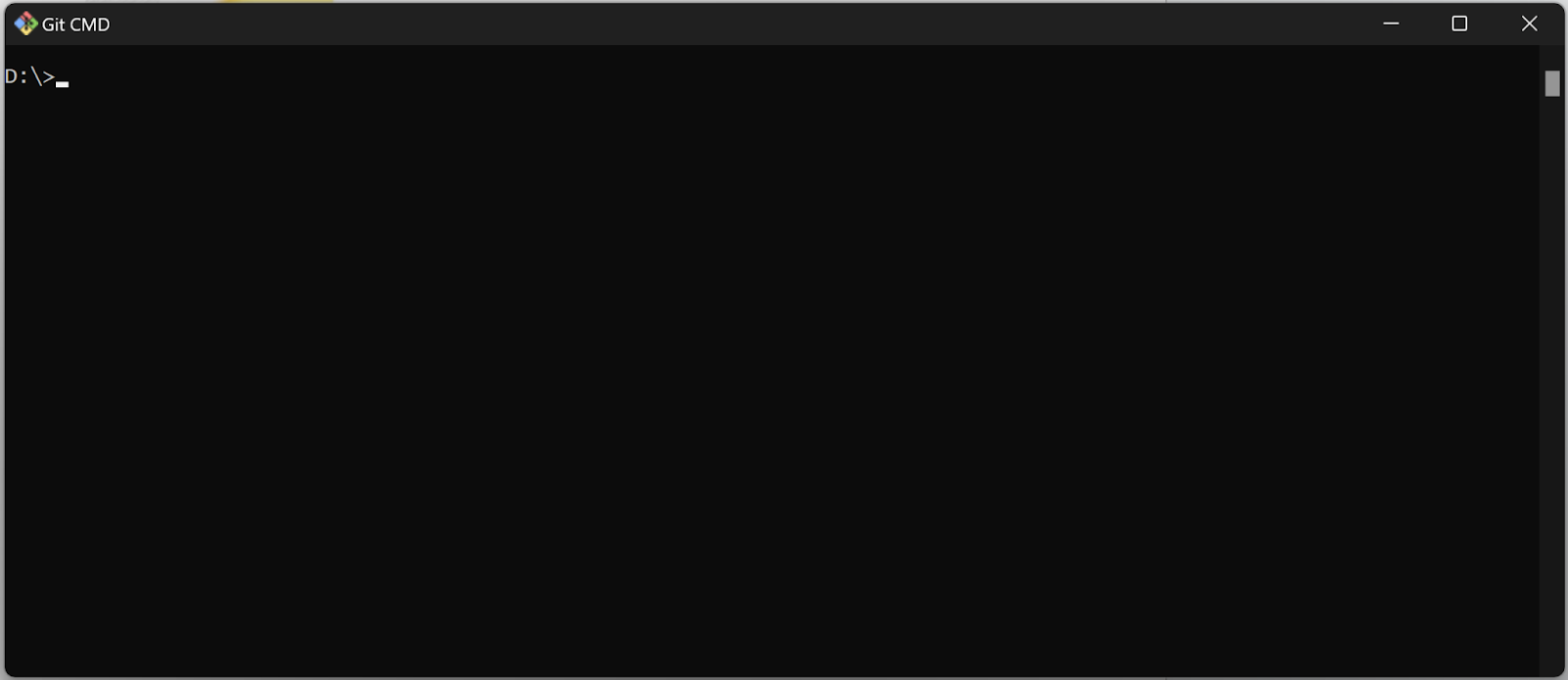
  1. Open your Command Prompt (Press your start menu, type CMD and press enter)
  2. Go to your desired hard drive (e.g. D:)

  1. Type md Forge to create a new folder for your installation.
  2. Type cd Forge to go into the new folder
  3. Type git clone https://github.com/lllyasviel/stable-diffusion-webui-forge.git to begin installation.

  1. Type cd stable-diffusion-webui-forge to enter newly created installation folder.
  2. Type webui-user.bat to begin using forge. Create a shortcut to this file for ease of use.

You can also double click the webui-user.bat from the folder

4. Installing Models

Forge is installed in your system without the prerequisite Stable Diffusion, Upscale, Controlnet etc. models. Before you start using Forge, make sure to download them and place them in the appropriate folders.

Stable Diffusion

Stable DIffusion Models are placed in: stable-diffusion-webui-forge\models\Stable-diffusion

A good place to download new models is www.Civitai.com, but for the default models, find them below:

Stable Diffusion 1.5 https://huggingface.co/runwayml/stable-diffusion-v1-5/tree/main

Stable Diffusion XL

https://huggingface.co/stabilityai/stable-diffusion-xl-base-1.0/tree/main

Stable Diffusion XL Turbo

https://huggingface.co/stabilityai/sdxl-turbo/tree/main

ControlNet

Stable DIffusion Models are placed in: stable-diffusion-webui-forge\models\ControlNet

All the most common Controlnet models can be found at

1.5 https://huggingface.co/lllyasviel/ControlNet-v1-1/tree/main

SDXL https://huggingface.co/lllyasviel/sd_control_collection/tree/main

Importing models from Automatic1111

You can use the models you already have installed for automatic1111 by adjusting the webui-user.bat file. Open it with notepad and adjust the set COMMANDLINE_ARGS= to

set COMMANDLINE_ARGS= --forge-ref-a1111-home "C:\Users\sebas\stable-diffusion-webui"

Make sure to change the path to your local automatic1111 install, above is just my example.

How to install Forge for Stable Diffusion. Detailed guide.

Comments

If you already have a1111 you have installed git and python, so I would install Forge properly. The oneclick will try to reinstall for you.

Sebastian Kamph

Hi, since I already have A1111 installed, is there any reason the one-click install should be avoided? Is the one-click method able to recognize and eventually inherit the existing Git and Python installations which I already have from A1111?

Marco De Stabile

Happy to hear you got it working and that you felt your donations gave you something back :)

Sebastian Kamph

DUUUDE. I have tried to many ways to get my LORAS to show up in Forge. I never have looked at your patreon, though I support it (obvs). The is right here! I did not have the @REM at the front of every line. I am not sure why I deleted it from the source. But it works! Loras show up, everything is pointing to my A11 folders. It's amazing. I am glad you put this here. TYSM!

Chariti Canny

Hey, does it affect anything? Sometimes there are errors with requirements but Forge will launch anyway. If it's not launching, try to install it on your system disk.

Sebastian Kamph

Hello just a quick question. I installed Forge and I'm getting a lightning deprecation warning and I'm not sure how to fix it. The full warning text is "D:\SD Forge\webui\venv\lib\site-packages\pytorch_lightning\utilities\distributed.py:258: LightningDeprecationWarning: `pytorch_lightning.utilities.distributed.rank_zero_only` has been deprecated in v1.8.1 and will be removed in v2.0.0. You can import it from `pytorch_lightning.utilities` instead.rank_zero_deprecation(

RenderDrgn

Here's the easiest way to reference all the existing stuff you have in your A1111 install: set COMMANDLINE_ARGS= --forge-ref-a1111-home "[insert-path]\stable-diffusion-webui" I also recomment putting a 'git pull' at the top of the webui-users.bat so that way you can't forget to update. It also works for the one-click package as long as you have git installed.

steamrick


Related Creators